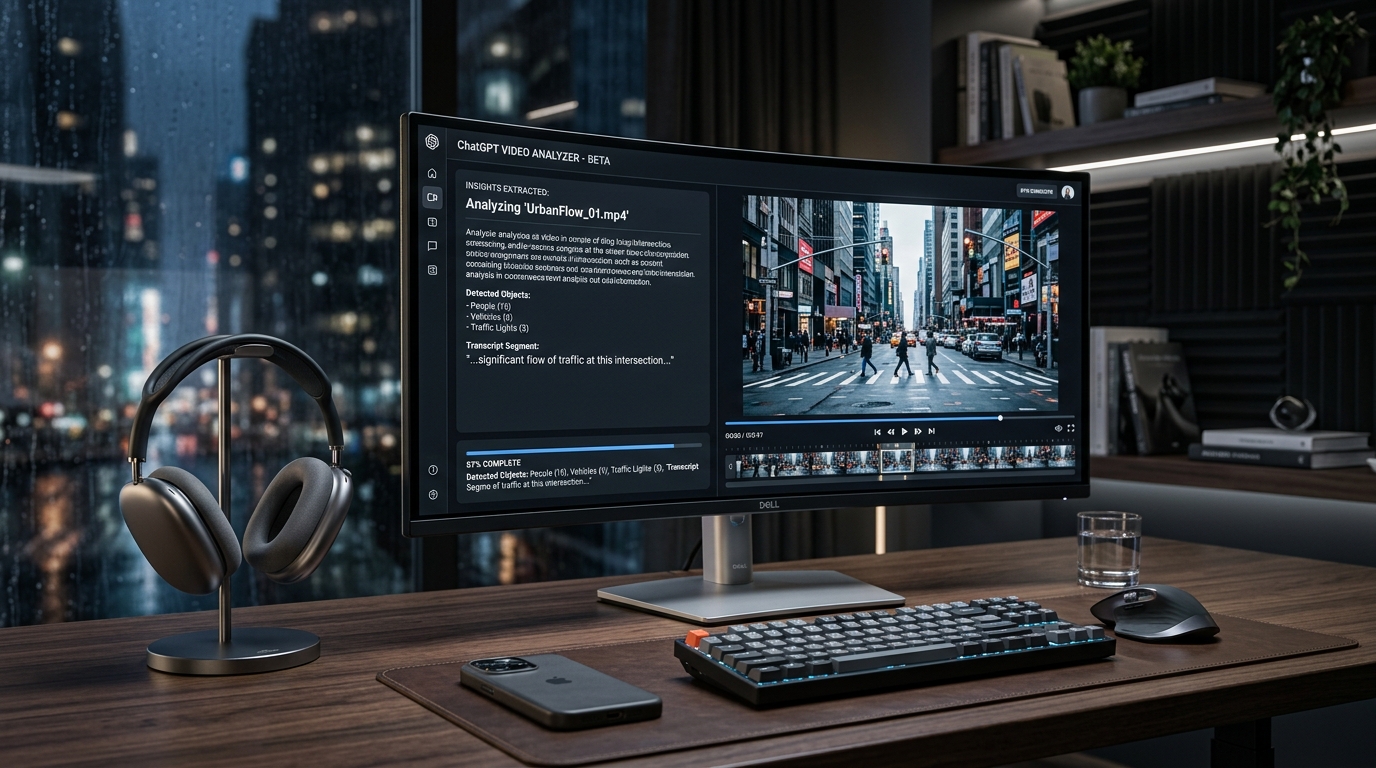
Imagine staring at a two-hour podcast episode, a massive folder of customer interviews, or a dry, 45-minute competitor webinar. You know the golden insights are hidden somewhere in that footage, but finding them feels like searching for a needle in a digital haystack. You simply do not have the time to sit down and watch every single minute.
Naturally, you might be asking the ultimate productivity question: Can ChatGPT analyze videos for me?
The short answer? Yes, absolutely. But it doesn’t “watch” videos quite the same way you and I do with a bowl of popcorn on the couch. Over the last couple of years especially with the rollout of advanced multimodal capabilities in 2026. ChatGPT has transformed from a strictly text-based chatbot into a powerful tool for visual and audio analysis.
If you want to stop wasting hours scrubbing through timelines and start extracting actionable data in seconds, you are in the right place. In this guide, we are going to dive deep into exactly how you can use AI to break down, summarize, and extract massive value from any video content.
Unpacking the Reality of ChatGPT Video Capabilities in 2026
Before we get into the step-by-step methods, we need to clear up a common misconception about ChatGPT video capabilities.
For a long time, the model was strictly text-in, text-out. If you wanted it to understand a video, you had to manually copy and paste a massive block of text from a transcript. Today, the landscape of AI video analysis looks entirely different.
Techpoint Africa
With the introduction of GPT-4o and the newest GPT-5 multimodal features on the desktop and mobile apps, ChatGPT can now process audio, visual frames, and text simultaneously. However, it is still not “streaming” the video like a human viewer. Instead, when you feed a video into the system, the AI rapidly extracts keyframes (like taking a series of screenshots) and aligns them with its Whisper-powered audio transcription. It then analyzes both of those data streams together to understand the context, the visual changes, and the spoken words.
YouTube+ 1
So, while it might not catch the nuanced comedic timing of a subtle eye-roll, it can absolutely tell you what a presenter is writing on a whiteboard, summarize the core arguments of a debate, or write a step-by-step guide based on a tutorial. Let’s break down exactly how you can leverage this.
Method 1: Direct File Uploads for AI Video Analysis
The easiest and most magical way to extract insights is by using the native, direct upload feature. This is where GPT-5 video analysis really shines, turning a tedious task into a one-click process.
If you are using the ChatGPT desktop application or the mobile app, you can now drag and drop MP4 or MOV files directly into the chat window.
CometAPI
Here is exactly how to do it:
- Open the Desktop or Mobile App: Make sure you are using the latest version of the app and have your model set to the most advanced multimodal option (like GPT-4o or GPT-5).
- Upload the File: Click the attachment icon (the little paperclip or plus sign) and select your MP4 file. You can also simply drag and drop the file directly into the chat interface.
CometAPI - Write a Specific Prompt: Don’t just say, “Analyze this.” Give the AI a specific job.
Example Prompt: “Watch this product demo video. Summarize the top three features being highlighted, and tell me if there are any visual UI changes on the screen between minute 1 and minute 3.”
- Review the Insights: ChatGPT will process the audio track and the visual keyframes, giving you a synthesized breakdown of the content.
Why this adds value: This method is perfect for short-to-medium-length videos, like quick customer feedback clips, TikToks, or brief tutorials. It saves you the hassle of using third-party transcription software, keeping your entire workflow contained inside one window.
Method 2: AI Video Transcription to Summarize YouTube Videos
What happens when you want to analyze a massive, three-hour YouTube podcast? Direct file uploads usually have size limits, and downloading massive files to your hard drive just to re-upload them to ChatGPT is a huge waste of time.
For long-form web content, AI video transcription is still your best friend. While ChatGPT cannot currently “watch” a live YouTube URL directly due to scraping restrictions, you can easily bridge this gap using browser extensions.
How to set up this workflow:
- Install a Chrome Extension: Download a free tool like YouTube Summary with ChatGPT & Claude (by Glasp) or Tactiq. Chrome Web Store – Google
- Open the YouTube Video: Navigate to the video you want to analyze. You will now see a new widget on the side of the screen containing the full transcript.
- One-Click Transfer: Click the ChatGPT icon within the extension. It will automatically open a new ChatGPT tab and paste the entire transcript along with a prompt to summarize it.
Reddit - Refine Your Output: Once the transcript is in ChatGPT, you can chat with it.
Pro-Tip Prompts to try:
- “Act as an expert marketer. Based on this transcript, pull out the three most controversial opinions the speaker shared and write a catchy Twitter thread for each.”
- “Create a detailed, timestamped outline of this lecture. Highlight any technical terms the professor mentions and provide a one-sentence definition for each.”
Why this adds value: By focusing on the text, you bypass all video size limits. This method is incredibly fast and allows you to summarize YouTube videos in seconds, making it a lifesaver for students, researchers, and content creators.
Method 3: Advanced Visual Insights Using Keyframe Extraction
Sometimes, the words aren’t enough. If you are analyzing a silent film, a highly visual software tutorial, or architectural footage, transcripts won’t help you. You need GPT-4o video analysis and AI image recognition to understand the visual data.
If the direct MP4 upload method is timing out due to file size, you can manually guide ChatGPT through the video using keyframes.
CometAPI
How to execute a frame-by-frame analysis:
- Take Strategic Screenshots: Scrub through your video and take 4 to 8 screenshots of the most critical moments. For example, if it is a software tutorial, screenshot the different menus the user opens.
- Upload as a Batch: Drag all of these screenshots into the ChatGPT prompt box at the same time.
- Provide Context: Tell the AI what it is looking at so it can connect the dots.
- Example Prompt: “I am uploading 5 sequential screenshots from a competitor’s onboarding video. Based on these images, break down their user journey. What steps do they require a new user to take, and what is the overall vibe of their design?”
Why this adds value: This method gives you total control. AI can easily get overwhelmed by the “noise” in a busy video. By manually selecting the frames, you are pointing the AI exactly where it needs to look, resulting in a much more accurate and insightful analysis of visual changes, charts, and slide decks.
ChatGPT vs. Gemini: Which is the Best AI for Video Analysis?
If you are serious about video analysis, you’ve probably wondered how OpenAI’s tools stack up against Google’s offerings. When looking at Gemini video capabilities, there is a distinct difference in how the two giants handle media.
ChatGPT: ChatGPT excels at deep reasoning, structuring information, and creative repurposing. Its Whisper integration means its audio transcription is highly accurate. It is the undisputed king of taking a video transcript and turning it into a beautifully formatted blog post, a quiz, or a social media campaign. However, it relies heavily on sampled frames rather than continuous playback.
YouTube
Google Gemini (formerly Bard): Gemini was built from the ground up to be natively multimodal. Because it is a Google product, it has deeply integrated access to YouTube. You can often drop a YouTube link directly into Gemini Advanced, and it can analyze the video without needing a third-party Chrome extension. It is generally better at understanding temporal changes (e.g., “At what timestamp did the dog walk across the screen?”).
The Verdict: If you need to quickly ask questions about a public YouTube video’s visual timeline, Gemini is incredibly frictionless. But if you want to extract insights to create new content, write detailed reports, or if you are uploading your own private MP4 files for deep contextual reasoning, ChatGPT remains the superior workflow engine.
Practical Use Cases: Revolutionizing Your AI Workflow
Understanding the technology is only half the battle. The real magic happens when you apply this to your daily life. Here is how you can use these capabilities to solve real problems and optimize your AI workflow.
Repurposing Long-Form Content into Social Media Posts
Creators spend hours making a single podcast or YouTube video, only to neglect social media because they are burnt out. You can use ChatGPT to instantly turn one video into a month’s worth of content.
- The Workflow: Upload your video file or transcript.
- The Prompt: “Analyze this video content. Write three engaging LinkedIn posts, five punchy tweets, and a script for a 60-second TikTok hook based on the core message of this video.”
Competitor Research and Product Demo Breakdowns
Startup founders and marketers need to know what the competition is doing, but sitting through endless product demos is exhausting.
- The Workflow: Grab the transcript of a competitor’s webinar using a browser extension.
- The Prompt: “Analyze this competitor demo. Create a feature comparison table showing what they offer versus what we offer [insert your features]. Identify three weak points in their pitch that we can capitalize on in our marketing.”
Educational Summaries for Faster Learning
Whether you are a medical student watching recorded lectures or a developer learning a new coding language, video tutorials can be slow and tedious.
- The Workflow: Upload the video directly to the desktop app.
- The Prompt: “Act as a strict tutor. Analyze this lecture video and give me a 5-bullet summary of the most important concepts. Then, create a 3-question multiple-choice quiz based on the video to test my knowledge.”
Conclusion:
So, can ChatGPT analyze videos? The answer is a resounding yes. We have moved far beyond the days of simple text chatbots. Whether you are using the latest direct MP4 upload features, leveraging browser extensions for massive YouTube transcripts, or feeding it specific visual keyframes, AI can now unlock the data trapped inside your video files.
The key to success isn’t just knowing how to upload the video it’s knowing what to ask. By crafting specific, context-rich prompts, you can stop passively watching content and start actively extracting high value insights.
Next time you are faced with a daunting hour-long video, don’t reach for the fast-forward button. Reach for ChatGPT, upload your file or transcript, and let the AI do the heavy lifting for you. You will save hours of your week, boost your productivity, and likely discover insights you would have missed on your own.