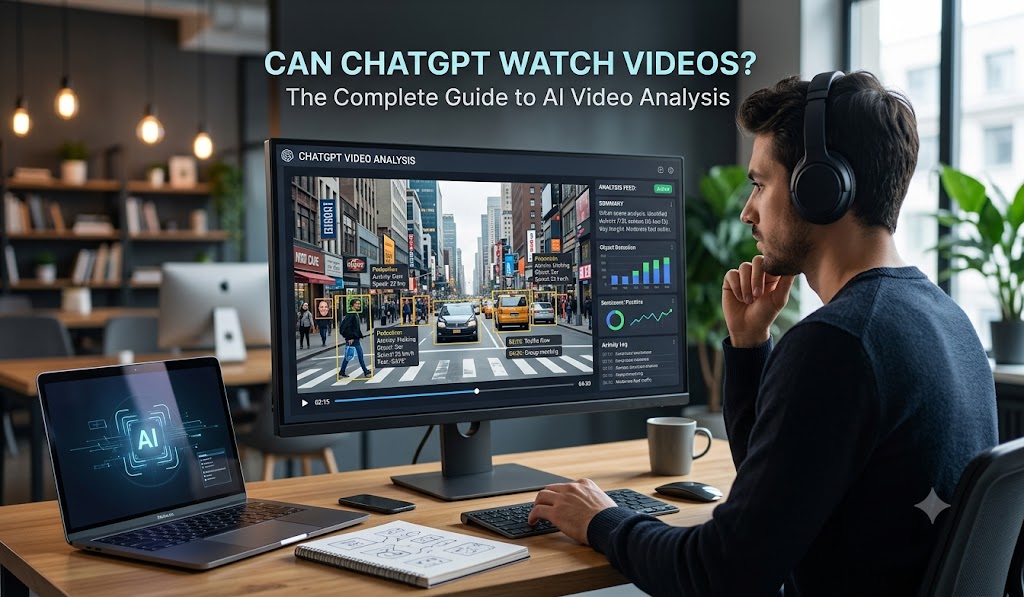
Have you ever found yourself staring at a two hour YouTube tutorial, wishing you could just ask an AI to summarize the good parts? If that’s true, you definitely aren’t alone. Millions of users turn to artificial intelligence every single day to save time, and naturally, one of the most common questions that comes up is: can ChatGPT watch videos?
The brief response is both affirmative and negative.. Ultimately, it depends on exactly what you mean by “watch.” If you are imagining an AI sitting back with a bowl of digital popcorn, hitting play, and absorbing a movie created exactly like a human would make it, which is not quite reality yet.. However, if your goal is to extract information, analyze visual scenes, or summarize long recordings, ChatGPT absolutely has you covered.
In this comprehensive guide, we will break down exactly what the current ChatGPT video capabilities are, how you can use them to your advantage, and what workarounds exist for the platform’s limitations. By the time you finish reading, you will know precisely how to turn any video into actionable, text-based insights.
The Short Answer: Can ChatGPT Watch Videos?
To put it briefly, ChatGPT does not stream or “watch” videos continuously in real time the way you or I do. Instead, it relies on a combination of visual frame extraction and audio transcription to understand what is happening.
Therefore, when you ask ChatGPT to analyze a video, it is actually performing a few clever tricks behind the scenes. First, it pulls out the spoken words using transcription technology (like OpenAI’s Whisper). Next, it samples specific visual frames essentially taking screenshots at various intervals and uses its vision capabilities to analyze those static images. Finally, it stitches this text and visual data together to give you a coherent answer.
How ChatGPT “Sees” Instead of “Watching”
Undoubtedly, this frame-by-frame approach is incredibly powerful, but it is important to understand the distinction. Because the AI is looking at individual snapshots rather than a fluid timeline of motion, it might miss subtle visual cues that happen between the frames. For instance, if a magician performs a rapid sleight-of-hand trick that lasts only one second, ChatGPT will likely completely miss it if a frame wasn’t captured at that exact millisecond.
Nevertheless, for most practical applications like summarizing an educational lecture, extracting data from a slide presentation, or reviewing a recorded meeting this method works exceptionally well.
How to Make ChatGPT Analyze Videos (Step-by-Step)
Now that we understand the underlying mechanics, let’s explore how you can actually put this to use. Specifically, there are three primary methods you can utilize to get ChatGPT to process video content, depending on the source of your media.
Method 1: Uploading Video Files Directly
Recently, OpenAI expanded its native capabilities, allowing users to upload video files directly into the chat interface. If you have a local MP4, MOV, or WEBM file saved on your computer, this is undeniably the easiest route.
- Open your chat interface: Start a new conversation in ChatGPT.
- Click the attachment icon: Look for the paperclip or plus symbol next to the text box.
- Select your video file: Upload your local video clip (keep in mind that file size limits apply, typically capping around 512MB for premium users).
- Add a specific prompt: Instead of just uploading the file and saying “analyze this,” be specific. For example, you might type, “Summarize the key points discussed in this marketing presentation and list any action items shown on the final slide.”
Consequently, the AI will process the file, transcribe the audio, and review the visual frames to generate a highly accurate response.
Method 2: Analyzing YouTube Links via Transcripts
On the other hand, what if you want to analyze a video that is hosted online, such as a YouTube link? Surprisingly, you cannot just paste a YouTube URL and expect ChatGPT to automatically play it. Since the AI lacks a native web browser capable of streaming third-party video players, pasting a link directly often results in a generic response based purely on the video’s title or metadata.
However, there is a very reliable workaround: using the video transcript.
- Open the YouTube video: Go to the video you want to analyze.
- Open the transcript: Click the “…” menu below the video player and select “Show transcript.”
- Copy the text: Highlight and copy the entire transcript (you can toggle off the timestamps to make it cleaner).
- Paste into ChatGPT: Bring that text over to your chat and say, “Here is the transcript of a video. Please provide a detailed summary and highlight the three main arguments.”
Alternatively, if you are a Plus user, you can utilize dedicated custom GPTs or third-party plugins specifically designed to fetch YouTube transcripts automatically. By using these tools, you bypass the manual copy-pasting process entirely.
Method 3: Live Camera and Screen Sharing
Additionally, the ChatGPT mobile app allows you to access live visual inputs.Through Advanced Voice Mode, ChatGPT can actually view your world in real-time.
For instance, if you are trying to fix a broken sink, you can turn on your camera, point it at the pipes, and ask the AI for advice. While this isn’t exactly “watching a pre-recorded video,” it is a highly interactive form of live video analysis. Similarly, screen sharing capabilities allow the AI to see exactly what you are doing on your device, making it an incredible tool for troubleshooting software issues or learning new coding techniques.
ChatGPT Video Capabilities: What It Does Best
Obviously, AI video analysis is not perfect for every single scenario. However, there are several specific use cases where ChatGPT absolutely shines. If you want to maximize your productivity, here are the areas where you should be utilizing these features.
Summarizing Long Lectures and Podcasts
Without a doubt, the most popular use case for ChatGPT video capabilities is summarization. If you are a student facing a two hour recorded lecture, or a professional trying to catch up on a missed town hall meeting, sitting through the entire recording can be incredibly tedious.
By uploading the file or providing the transcript, you can ask the AI to condense hours of talking into a concise, easy to read bulleted list. Moreover, you can ask follow-up questions. If the summary mentions a specific marketing strategy you want to know more about, you can simply prompt the AI: “Expand on the marketing strategy mentioned in the second half of the video.”
Extracting Key Visual Data
Additionally, ChatGPT is exceptionally good at pulling text and data out of visual presentations. If a video features heavy use of charts, graphs, or PowerPoint slides, the AI’s vision capabilities can read that on-screen text.
For example, if you upload a product demo video, you can ask ChatGPT to list all the features displayed on the screen, even if the narrator never explicitly mentions them out loud. This is particularly useful for competitor analysis or compiling research notes.
Content Moderation and Compliance
Finally, for creators and business owners, AI serves as an excellent first pass for content moderation. Before you publish a video, you can upload it and ask ChatGPT to flag any potentially sensitive topics, ensure it aligns with your brand guidelines, or check if it meets specific compliance standards. In short, it acts as a tireless editorial assistant.
The Limitations: What ChatGPT Still Struggles With
Despite these impressive advancements, it is equally important to understand what the AI cannot do. Managing your expectations will save you a lot of frustration when dealing with complex video files.
The Problem with Motion and Timing
As we established earlier, ChatGPT processes videos by looking at static frames. Consequently, it struggles significantly with anything that relies heavily on continuous motion, subtle visual changes, or precise timing.
For example, if you upload a security camera footage clip and ask, “At exactly what timestamp does the red car enter the frame?” ChatGPT may fail or generate an inaccurate response. Because it is sampling frames (perhaps one every few seconds), it cannot track continuous motion flawlessly. Likewise, it cannot interpret complex body language, subtle facial expressions, or the emotional tone of a purely visual cinematic sequence.
Hallucinations and Context Loss
Furthermore, AI is still prone to hallucinations making things up when it is confused. When audio and visual inputs contradict each other, or if the video quality is poor, ChatGPT might generate a summary that sounds confident but is factually incorrect.
Moreover, when analyzing long YouTube videos via plugins, context can sometimes be lost. Auto-generated captions are notoriously flawed, often misinterpreting accents or technical jargon. Because the AI is relying on that flawed text, its final analysis will inevitably inherit those exact same mistakes. Therefore, it is always a good idea to double-check the AI’s work, especially if you are using the information for critical business or academic purposes.
ChatGPT vs. The Competition (Gemini and Claude)
Of course, OpenAI is not the only player in the artificial intelligence arena. When discussing video analysis, we have to look at how ChatGPT stacks up against its primary competitors: Google’s Gemini and Anthropic’s Claude.
Is Gemini Better for Video?
Truthfully, when it comes to native video understanding, Google’s Gemini has historically held a distinct advantage. Because Gemini was built from the ground up to be truly multimodal, it processes audio, text, and visual video data simultaneously. Furthermore, Gemini integrates seamlessly with YouTube (since Google owns it), meaning it can often pull context, transcripts, and metadata from YouTube links much smoother than ChatGPT can.
On the other hand, Claude (developed by Anthropic) currently lags slightly behind in native video file processing. While Claude is exceptional at analyzing massive amounts of text making it perfect if you have a massive video transcript it does not natively support direct video file uploads in the same seamless way that ChatGPT or Gemini do.
Ultimately, if you need deep textual reasoning and conversational flexibility, ChatGPT remains a top-tier choice. However, if you are deeply embedded in the YouTube ecosystem, Gemini might occasionally offer a smoother workflow.
FAQs
To summarize everything we have covered, let’s address some of the most common questions users have about this topic.
1. Can ChatGPT summarize a 2-hour YouTube video?
Yes, absolutely. However, it cannot do this by “watching” the link. You will either need to copy and paste the transcript manually, or use a custom GPT/plugin designed to extract YouTube transcripts. Once the text is provided, ChatGPT can summarize it in seconds.
2. What types of video files can I upload to ChatGPT?
Generally, the platform supports standard formats like MP4, WEBM, and MOV. Nevertheless, you should keep your files relatively short and compressed to avoid hitting upload size limits.
3. Does ChatGPT listen to the audio in my uploaded videos?
Yes. When you upload a video file, the system utilizes audio transcription technology (like Whisper) to convert the spoken words into text. It then analyzes that text alongside the visual frames it extracts.
4. Can I ask ChatGPT to edit my video?
No. ChatGPT is an analytical tool, not a video editing software. While it can give you a timestamped list of suggestions for how you should edit a video, it cannot physically cut, splice, or render a new video file for you.
Conclusion
In conclusion, the answer to the question “can ChatGPT watch videos?” requires a bit of nuance. While it may not sit back and watch a movie the way a human does, its ability to dissect, transcribe, and analyze visual frames makes it an incredibly powerful tool for content consumers and creators alike.
Whether you are trying to summarize a lengthy university lecture, extract vital data from a corporate presentation, or simply save time browsing YouTube, understanding these ChatGPT video capabilities will undeniably boost your productivity. As AI technology continues to evolve at a breakneck pace, we can only expect these features to become more fluid, accurate, and human-like in the near future.
Therefore, the next time you are faced with a dauntingly long video, don’t waste hours scrubbing through the timeline.